Conda Windows Installation
First download and run the https://repo.anaconda.com/miniconda/Miniconda3-latest-Windows-x86_64.exe installer or download it from https://docs.anaconda.com/miniconda/.
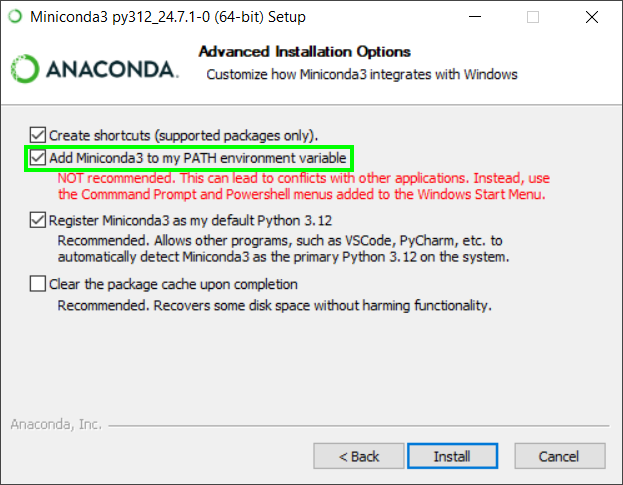
Then go through the setup, you can keep the defaults until you reach the following screen. Here check the “Add Miniconda3 to my PATH environment variable”. This will make sure the conda command is available from your Command Prompt.
Finish the installation.
Verify installation
Open new Command Prompt window and check that conda command is available:
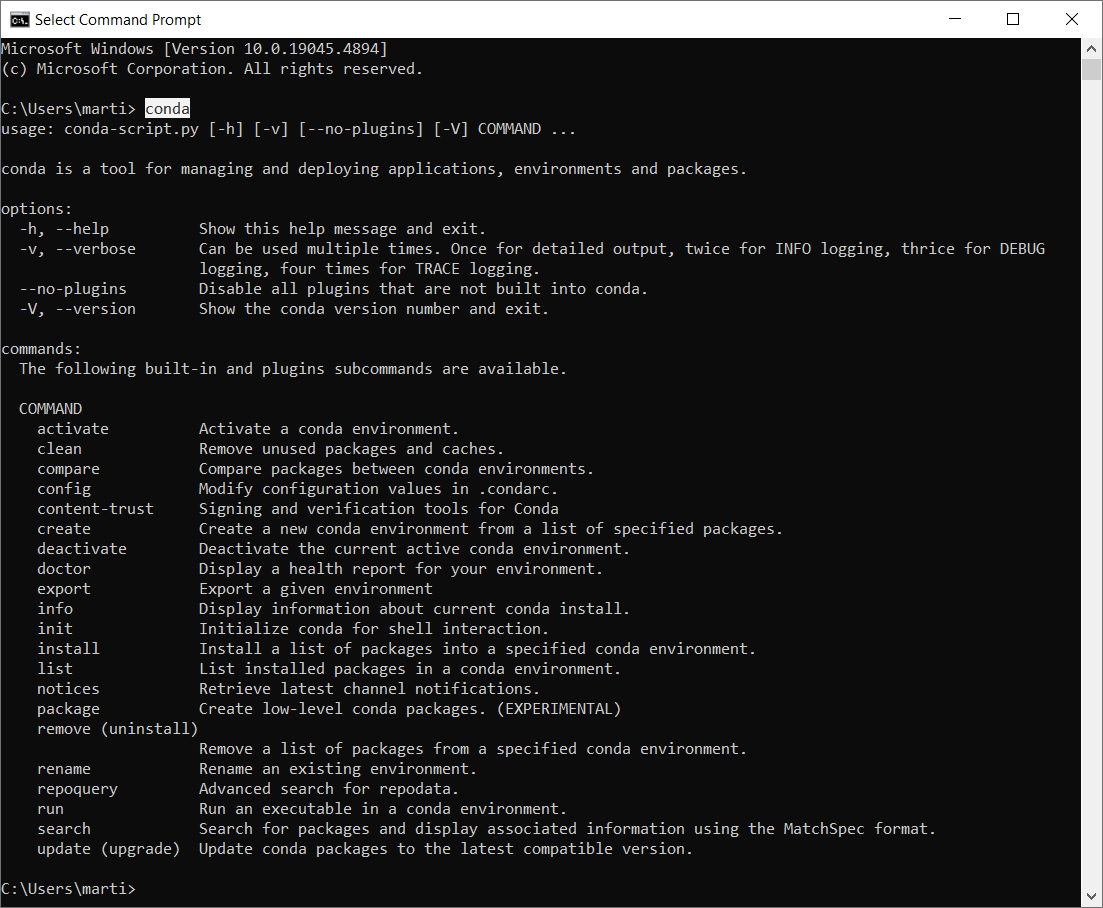
Then your conda is successfully installed and you can proceed with the creating environment and installing dependencies.
Alternative to including Anaconda in PATH
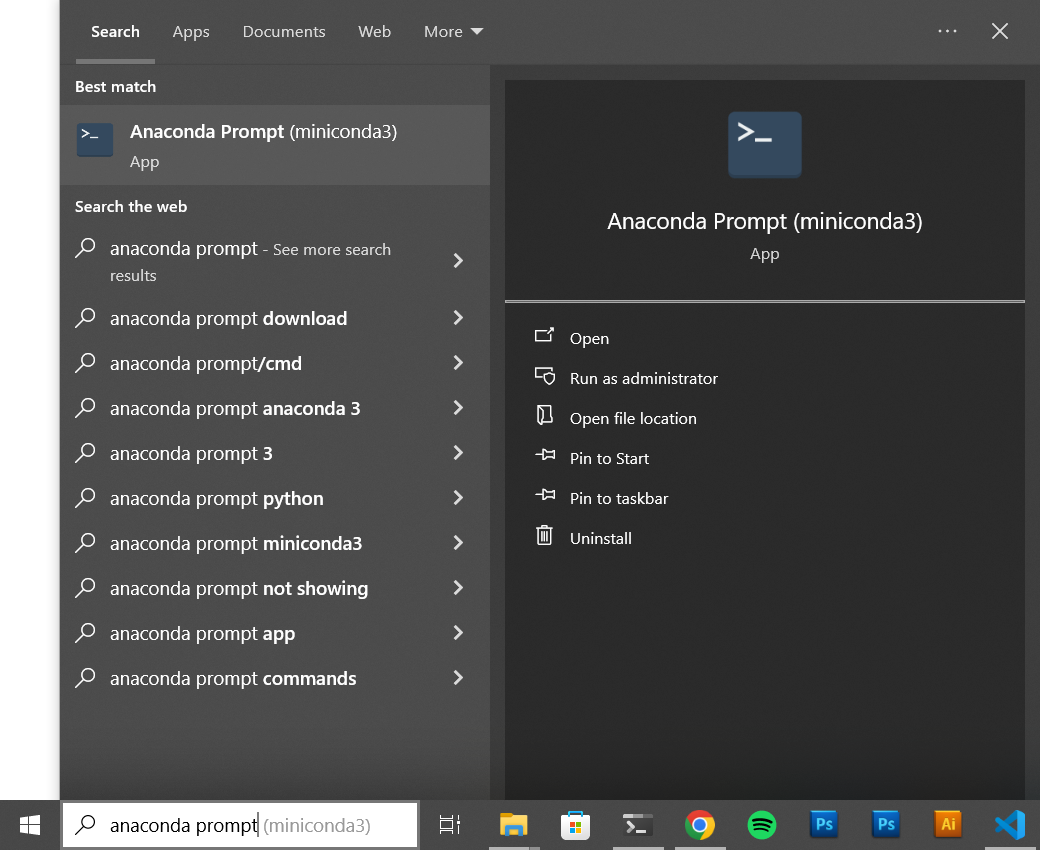
If have strong reasons why not to add Anaconda to you PATH environment variable, you can always access the conda command in the Anaconda Prompt instead of the Command Prompt: